Documents
Every issue has one main document, its spec, on the Spec tab. An issue can hold other documents too, listed on its Artifacts tab, and a project can hold documents that belong to no single issue, on the project’s Documents tab. All of them work the same way.
Editing
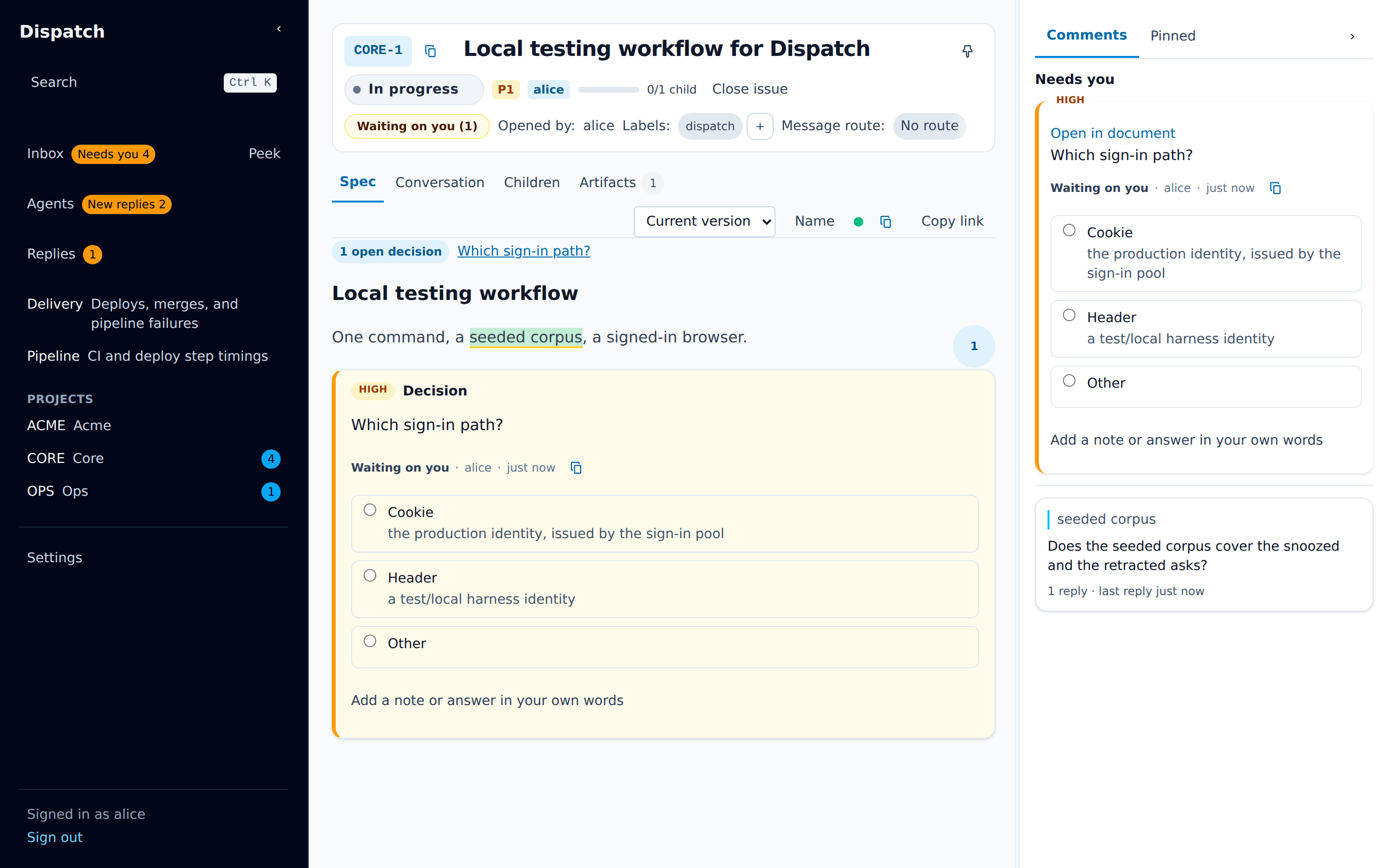
Section titled “Editing”A document is live: you and everyone else with it open edit the same text at the same time, and see each other’s changes as they happen. There is no save button. Dispatch saves what you type as you go.
A dot at the end of the tab row shows the document’s connection: connecting, connected, offline, or failed. Point at it to read which.
Versions
Section titled “Versions”When the text settles, about two seconds after a change, Dispatch records a new version. The controls at the end of the Spec tab row work with them:
- Version picks a version to read. An older version is read-only.
- Name version records the current text as a version and asks What changed? for a short description.
- Diff vs current appears while you read an older version, and shows how it differs from the current text.
Other documents carry the same controls in their header.
Every version records how big it is stored: a document’s markdown in bytes, as a file’s are. The issue’s Artifacts tab and the project’s Documents tab show each document’s latest size beside its kind, and a document’s version list shows every version’s, so you can find a document close to the 1 MiB limit without opening it.
Comments in the margin
Section titled “Comments in the margin”Comments on a document sit in the margin beside the text they are about. On a wide screen the
margin is a column on the right; Shift+M hides and shows it. On a narrower screen it opens as a
sheet from the bottom.
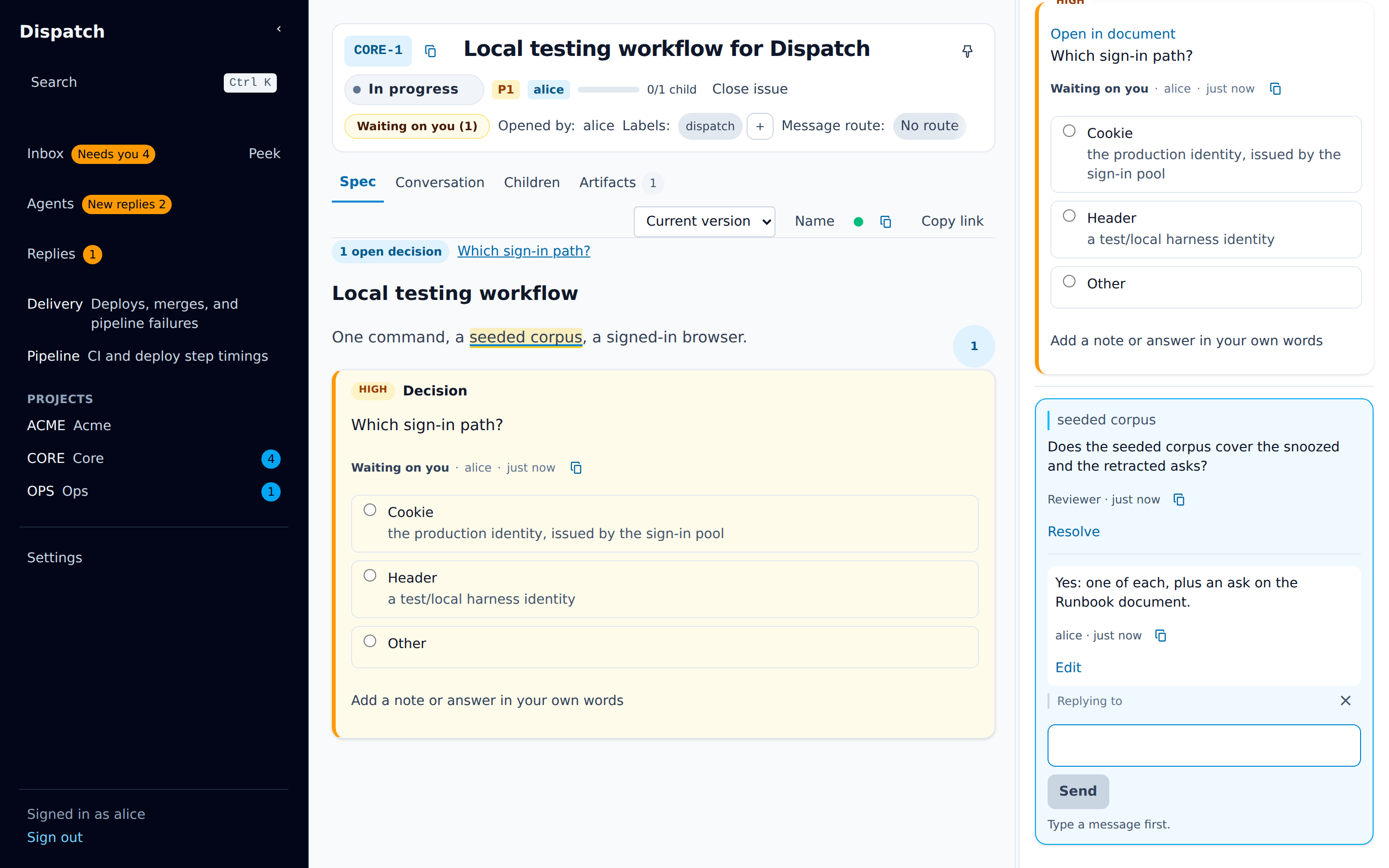
To comment, select some text. A bar appears with three actions:
- Comment opens a comment on the selection.
Ctrl+Alt+M(⌘+⌥+Mon a Mac) does the same from the keyboard. - Suggest proposes replacement text for the selection.
- Ask opens a question on the selection, with an urgency, options, and Allow multiple.
You can switch between the three in the composer before you send. The selection is highlighted in the document, and choosing a highlight opens its thread in the margin.
A thread is a card with its replies in order. In a thread you can:
- reply,
- edit your own comments,
- Resolve the thread when it is done.
Resolved threads fold into Resolved (N). A resolved thread has Reopen. The same comments also appear on the issue’s Conversation tab, in time order.
Suggestions
Section titled “Suggestions”A suggestion shows the text it would remove and the text it would add. A person decides it:
- Accept suggestion applies the change to the document.
- Reject suggestion closes it and leaves the text as it was.
Anyone can propose a suggestion, with Suggest or through an agent’s tools. Only a person can accept or reject one.
Decision blocks
Section titled “Decision blocks”A decision block is a question written into the document itself, at the end of the section it is about. It shows as a card with its urgency and the word Decision, and its options as rows you can pick. It is an ask like any other: it appears in your Inbox too, and an answer or Ask back made in either place shows in both.
To edit a decision’s options, click into its question. The option list appears for that block, and folds away again when you click elsewhere.
When a document has open decisions, a link under the tab row jumps to the next one.
Approvals
Section titled “Approvals”An agent can ask you to approve a document at its current version. Approval belongs to a version, the way a code review belongs to a commit. Once someone has asked, the document header shows a chip with the approval state:
| Chip | Meaning |
|---|---|
Awaiting approval |
Approval was requested and nobody has reviewed this version yet. |
Approved v12 |
Version 12 is approved, and it is the latest version. |
Approved v12 · changed since |
Version 12 was approved, then the document changed, other than by your own answer to a decision block (below). |
Changes requested |
A reviewer asked for changes. |
Choose the chip to see the review history. Beside it:
- Approve approves the latest version. When the approved version is out of date, the button names the latest one, for example Approve v13.
- Request changes asks you for a reason, which goes back to the agent.
The request also reaches your Inbox as an Approval requested card. Answering either one is the
same review. When you approved an earlier version of the document, the card puts
Approved at version N on <date> by <who>. under the question, with a Show diff control that
shows what changed between that version and the one you are asked to approve, with every decision
block left out of both, so you read what changed outside the decisions you already made; the
agent’s summary names it in a sentence.
Your own answer to a decision block in a document you approved carries your approval forward when
that answer is the whole change since the version you approved: Dispatch records an approval in
your name at the version your answer writes, the chip reads Approved at that version, and the
review history shows it, so nobody asks you to approve again what you just decided. A change
outside the decision blocks, a block added or answered since your approval without your own answer
(someone else’s answer, or a block waived), a decided block whose question or options were
changed, a removed block, or a request for changes newer than your approval leaves the document
changed since, and the next request shows you the diff.
When Legion’s design gate is on, Legion waits for this approval before it builds what a root issue’s spec describes.
Block links
Section titled “Block links”Every paragraph, list, and other block in a document has a stable link. Put your cursor in a
block and choose Copy link to block in the Spec tab row. The link ends in #b- and the block’s
id. Opening it scrolls to that block and highlights it briefly.
References
Section titled “References”Anything in Dispatch can be linked with a dispatch:// reference: dispatch://CORE-12 for an
issue, dispatch://CORE-12/spec for its spec, and similar forms for documents, asks, comments, and
messages. In a document or a comment, a reference shows as a link titled with what it points to.
Rest the pointer on a link, or focus it with the keyboard, to see a preview card.
Every issue, document, and ask has a Referenced by list of what links to it. A document page shows the list open; an issue shows it in its header.
Search
Section titled “Search”Press Ctrl+K (⌘K on a Mac), or choose Search in the sidebar, to open the palette. Press /
to open it for search alone.
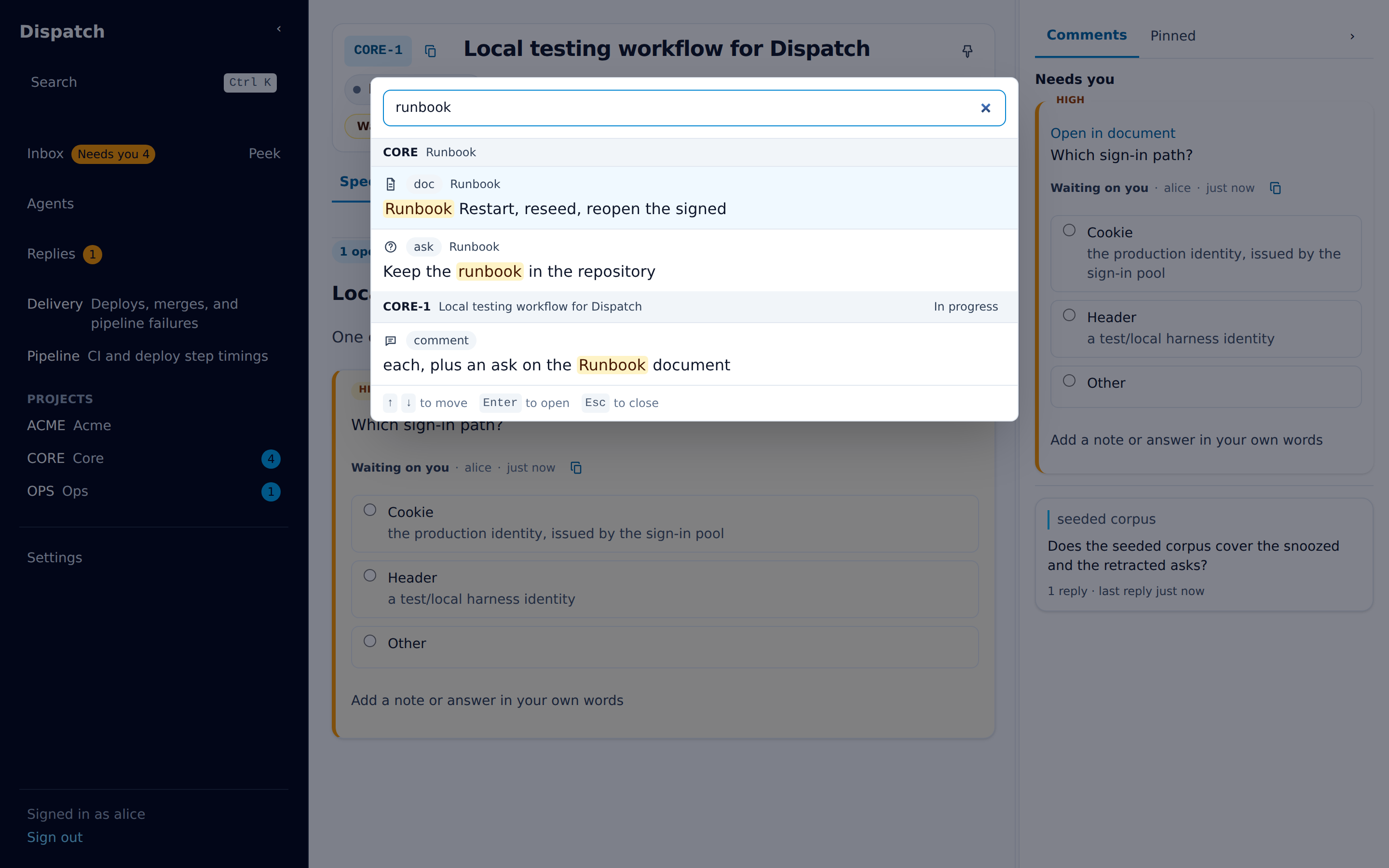
Search covers issue titles, the latest text of every document, comments, asks and their answers,
and messages. A query needs at least two characters and can be up to 1,000. You can use quotes for
a phrase, OR between words, and - before a word to leave it out: "merge queue" -draft.
A very long text made almost entirely of words that each appear once, such as a list of hundreds of kilobytes of identifiers, holds more words than one search index entry can. Search then indexes its opening part, the largest of its first half, quarter, eighth and so on that fits, up to the last whole word in it, and does not index the words after it. When the opening part has no whitespace before the cut, none of its words are indexed. An issue is always found by its key.
Results are grouped by the issue or document they belong to. Choosing a document result opens the document and highlights the first place the words appear. Text typed into a live document can take about two seconds to show up in search.
Keyboard shortcuts covers the palette’s other modes.