Issues and projects
Work in Dispatch is a set of issues, grouped into projects. A project has a short key, such
as CORE, and its issues are numbered under it: CORE-1, CORE-2.
Projects
Section titled “Projects”The sidebar lists every project with its count of open asks. You create a project in
Settings → Projects with a key and a name, and an agent creates one with dispatch project.
A key that is already taken is refused, whoever asks.
A project page has up to three tabs:
- Issues: the project’s issues, as a List or a Board.
- Documents: the project’s documents that belong to no single issue. Pick or drop a file here to upload it.
- Architecture: the project’s components and how much tracked work each has. This tab appears only when the project has an architecture source, which you set in Settings → Architecture sources.
Opening a project from the sidebar takes you to Architecture when the project has a source, and to Issues otherwise. When an ask in the project is waiting on you, the header shows a Blocked on you · N pill that links to the Inbox.
Statuses
Section titled “Statuses”Every issue has one of nine statuses, in this order:
Triage → Icebox → Backlog → Todo → In progress → Testing → Needs review → Retro → Done
An open issue’s Status menu offers every status except Done. Close issue is the way into Done, and a closed issue offers Reopen, which puts it back in Backlog.
Legion, when it works an issue, moves that issue’s status itself.
The List and the Board
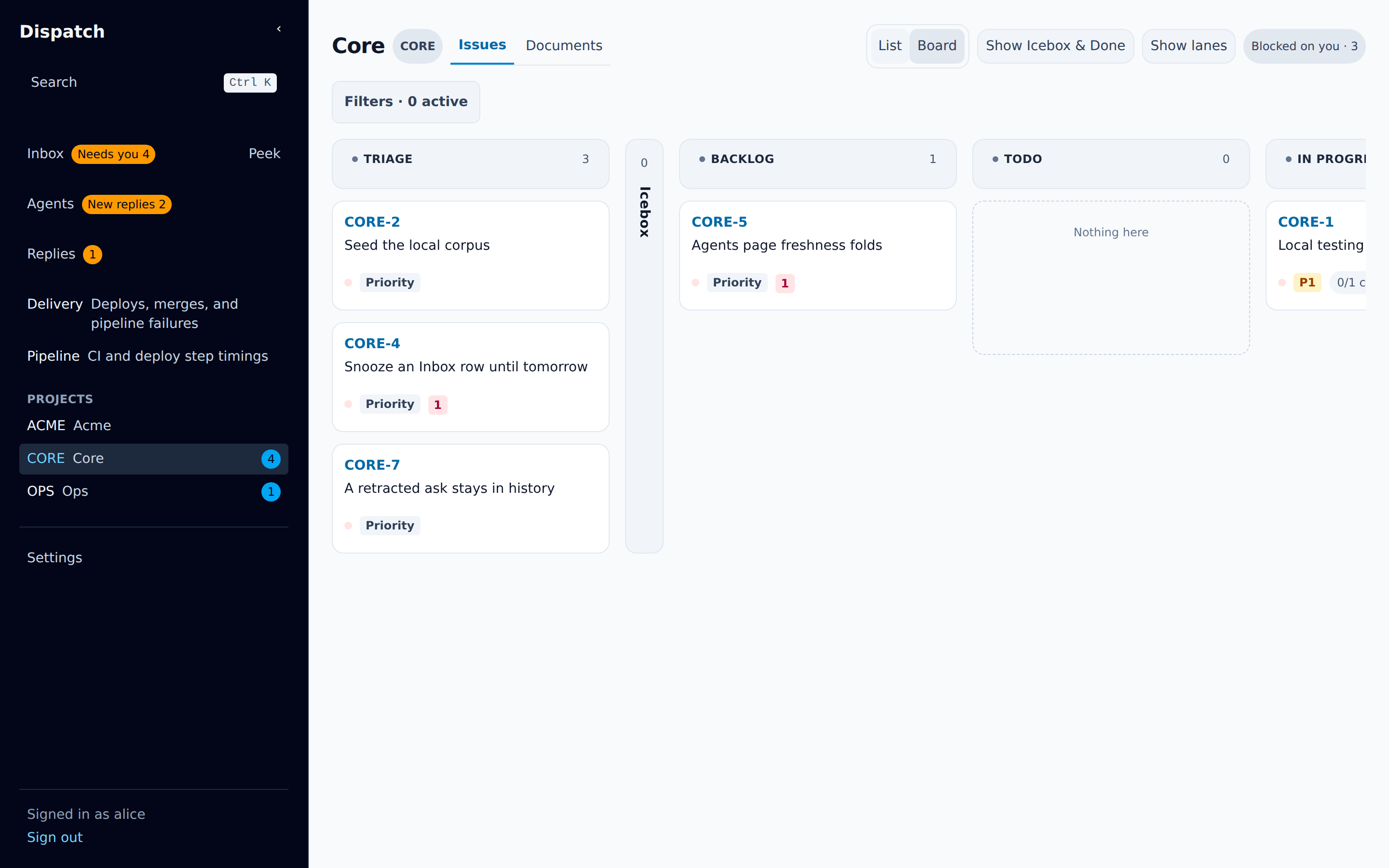
Section titled “The List and the Board”The List and Board buttons switch between two views of the same issues. Press v to
toggle. Dispatch remembers your choice.
Both views use one order. Issues are grouped by status, and within a status they keep the order people set on the Board. A card you drag to the top of its column is first in the List too. Priority is shown as a badge and can be filtered on, but it does not change the order.
Moving cards
Section titled “Moving cards”The Board has a column per status. Drag a card to reorder it or to change its status:
- With a mouse, press and move the card.
- On a touch screen, hold the card briefly, then drag. A quick tap opens the issue, and a swipe scrolls.
- With the keyboard, focus a card and press
Shift+JorShift+Kto move it down or up, andShift+LorShift+Hto move it to the next or previous status.
Dropping a card in Done closes the issue. Moving it out of Done reopens it.
Icebox and Done start as narrow folded columns. They still take drops. Show Icebox & Done opens them in full, and Dispatch remembers that choice.
If someone else moved cards while you were dragging, the move fails with “The board changed while you were moving this card - refreshed, try again.” The Board shows the fresh order.
Show lanes, beside Show Icebox & Done, splits the Board into horizontal bands, one per priority: P0 down to P3, then a band for issues with no priority. Cards keep their rank order within each band. The choice persists per signed-in user, not in the page address, so it survives a reload.
Dragging a card across lanes sets its priority, in the same drop that a drag across columns sets
its status. Keyboard roving (j/k, the arrow keys) stays within the focused lane.
Priority
Section titled “Priority”Priority runs from P0, the highest, to P3. An issue with no priority shows a muted Priority tag. The badge is a picker wherever it appears: the issue header, a Board card, a List row, and an Inbox row. Choose it and pick a value. Closed issues cannot change priority.
Assignee
Section titled “Assignee”The assignee is the person who answers the issue’s asks, and whose Inbox shows them under Mine. Change it from the issue header. The choices are Unassigned and every login allowed to sign in.
Labels
Section titled “Labels”Choose Labels in the issue header to edit an issue’s labels. The list offers every label used in the project, and you can create a new one from the search box. Your changes save when the list closes.
Filters
Section titled “Filters”Choose Filters above the List or the Board to open the filter strip. It holds:
- Status (List only), to keep issues in the statuses you pick.
- Labels, to keep issues that carry every label you pick.
- Search, to match issue keys and titles.
- Needs you, to keep issues with open asks.
- Unread, to keep issues with activity you have not seen.
- Unclaimed, to keep issues no agent is implementing.
Each active filter shows as a chip next to Filters · N active. Choose a chip to remove it. Filters live in the page address, so a filtered view survives a reload and can be shared as a link.
An issue an agent is implementing shows Claimed by and the agent’s name. When that agent is no longer running, the chip says not running, and the issue counts as unclaimed.
Creating an issue
Section titled “Creating an issue”Press c anywhere. Pick the project, type a title of up to 1,000 characters, and optionally the
first line of the spec. If the title closely matches an existing issue in the project, Dispatch
shows that issue and offers Create anyway. A new issue opens as soon as it is created.
The issue page
Section titled “The issue page”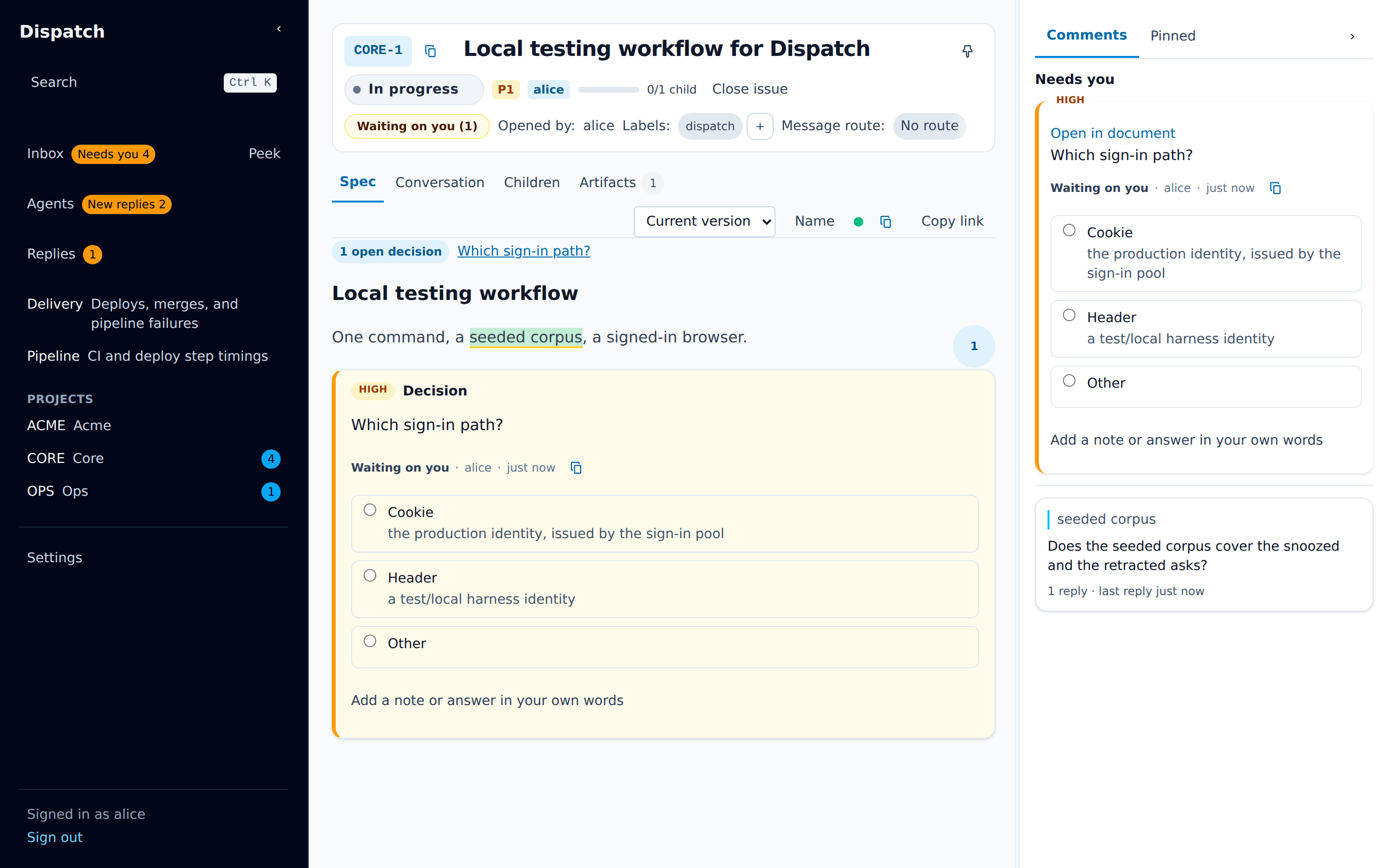
The header
Section titled “The header”The header holds the issue’s key, title, and pin, then its controls:
- Status, priority, and assignee.
- An approval chip once someone has asked for the spec to be approved.
- Close issue, or Reopen on a closed issue.
- Whose turn it is:
Waiting on you (N)orWaiting on agents (N), counting the issue’s open asks.
A line of details follows: labels, subscribers, the parent issue, linked GitHub issues and pull
requests, and Referenced by. Choose the title, or press e, to edit it.
A title shows in full, wrapped at any width, rather than cut off after two lines. A list that still clamps a title shows the whole of it on hover.
- Parent shows the parent issue or None. You can edit it to move the issue under another.
- Subscribers: N lists the agent sessions subscribed to the issue. Unsubscribe stops delivery to one and tells it so.
- Referenced by (N) lists every issue, document, ask, comment, and message that links here.
- Components appears when the project has an architecture source. It shows which parts of the architecture the issue belongs to, and lets you change them.
The tabs
Section titled “The tabs”- Spec is the issue’s main document. Documents covers it.
- Conversation is the issue’s history: comments, messages, asks and their answers, and activity such as updates, uploads, and changes to child issues. The newest is at the top, with Load older at the bottom. Show activity hides or shows the activity lines. Show retracted shows asks the agent withdrew. Resolved (N) shows resolved comment threads.
- Children lists the issue’s child issues, each with its status, how much of its own tree is done, and its latest activity.
- Artifacts lists the issue’s documents and files, with a count. Pick a file, or drop one on the tab, add an optional summary, and choose Upload. Uploading a file with the same name adds a new version.
Press t and then s, c, h, or a to switch to Spec, Conversation, Children, or Artifacts.
Writing in the Conversation
Section titled “Writing in the Conversation”The box at the foot of the Conversation posts a comment on the issue. Type @ to mention an agent
role or a live agent session; the comment is then delivered to it. Start the comment with /btw
or /aside to choose how a mentioned agent receives it. Agents
explains the delivery modes.
Press Ctrl+Enter (⌘Enter on a Mac) to send. Enter alone starts a new line.
Pins keep things you return to within reach.
- An issue. Choose the pin next to the title, or press
Shift+P. Pinned issues appear under Pinned in the sidebar, with their open-ask counts. - A Conversation entry. Every entry has a pin at its top right. Pinned entries appear in the margin’s Pinned tab beside the document, each with Unpin.
- An agent. On the Agents page, a pinned agent stays at the top of the list.