Keyboard shortcuts
Dispatch can be driven from the keyboard. Press ? on any page to see the shortcuts that page
offers.
Ctrl below means ⌘ on a Mac, and Alt means ⌥ (Option). A shortcut written g i is a
sequence: press g, let go, then press i within a second. While you wait, the keys pressed so far
show in the bottom right corner.
While you type in a text field, only Ctrl+K, Escape, and Ctrl+Alt+M in a document work as
shortcuts, so single letters never interrupt your typing.
The help and the palette
Section titled “The help and the palette”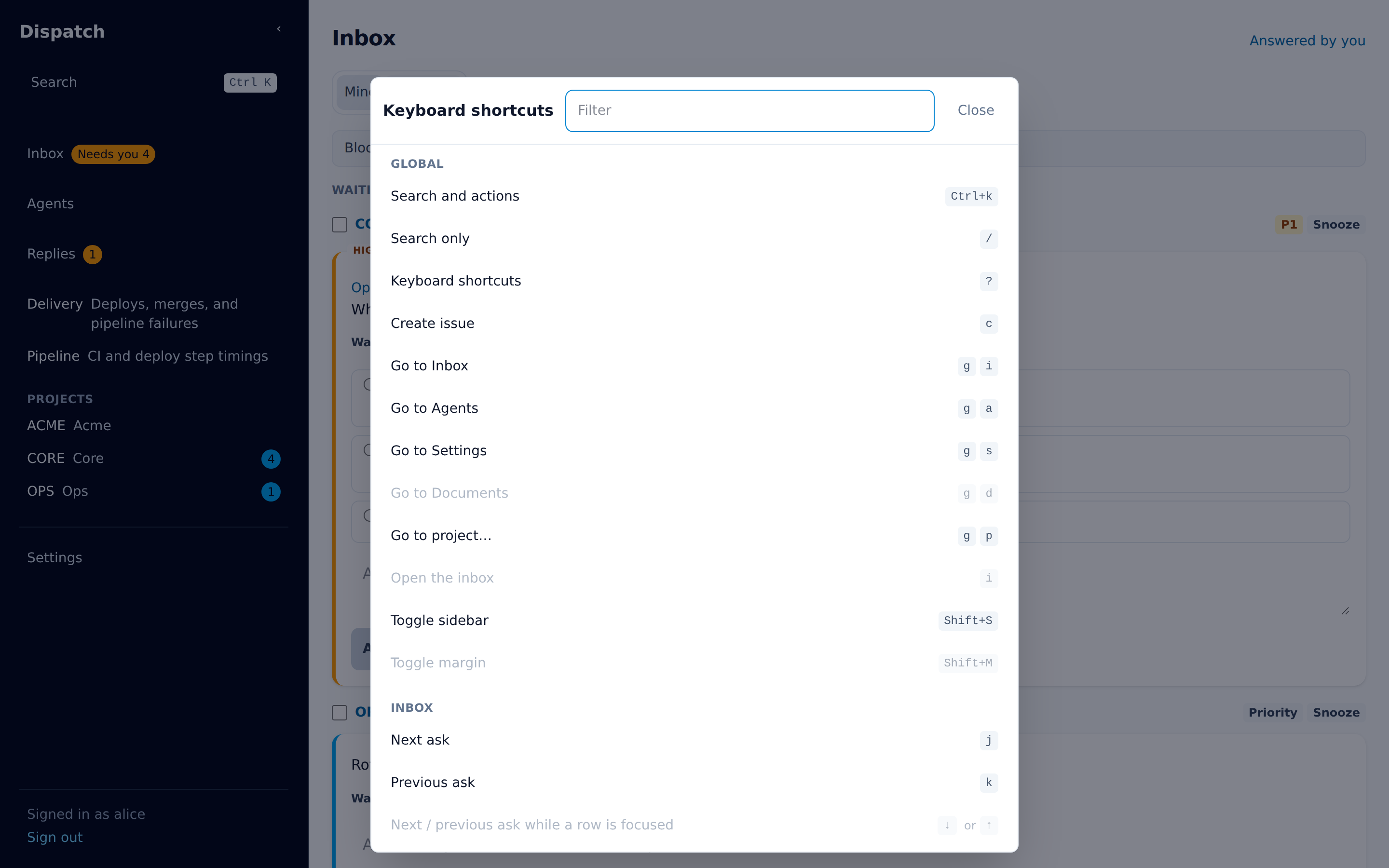
? opens Keyboard shortcuts: every shortcut the current page offers, grouped by where it
applies. Type in its filter box to narrow the list. A shortcut that would do nothing right now,
such as one that needs a focused row, is greyed out.
Ctrl+K opens the palette. With an empty box it lists the actions for the page you are on, each
with the keys that also run it. Type to filter those actions and to search all of Dispatch. Use
the arrow keys and Enter to pick a row. Some actions are only in the palette, because a single
key would be too easy to press by mistake: Close issue, Reopen issue, and
Set priority P0 to P3.
/ opens the palette for search alone, with your last search selected so that typing replaces
it. g p opens it as a project list.
Global
Section titled “Global”These work on every page.
| Keys | Action |
|---|---|
Ctrl+K |
Search and actions |
/ |
Search only |
? |
Keyboard shortcuts |
c |
Create issue |
g i |
Go to Inbox |
i |
Open the Inbox as a drawer over the current page (not offered on the Inbox page itself) |
g a |
Go to Agents |
g s |
Go to Settings |
g d |
Go to the current project’s Documents (on a project or issue page) |
g p |
Go to project… |
Shift+S |
Toggle the sidebar (wide screens) |
Shift+M |
Toggle the margin (wide screens, on a page with a document) |
| Keys | Action |
|---|---|
j / k |
Next / previous ask |
↓ / ↑ |
Next / previous ask, while a row is focused |
Enter |
Answer the focused ask (moves into its answer box) |
1 – 9 |
Select option 1–9 of the focused ask |
o |
Open the ask’s issue or document |
y |
Copy the focused ask’s reference |
x |
Select or deselect the focused ask |
h |
Snooze the focused ask, or every selected ask |
Escape |
Back to the ask row, then off it; from the bulk snooze menu, back to the list; with no row focused, clear the selection |
Project
Section titled “Project”| Keys | Action |
|---|---|
v |
Toggle List / Board (on the Issues tab) |
On the List:
| Keys | Action |
|---|---|
j / k |
Next / previous issue |
o |
Open issue |
Enter |
Open the focused issue (from the row) |
| Keys | Action |
|---|---|
j / k |
Next / previous card |
l / h |
Next / previous column |
↓ / ↑ |
Next / previous card, while one is focused |
→ / ← |
Next / previous column, while one is focused |
Shift+J / Shift+K |
Move card down / up |
Shift+L / Shift+H |
Move card to the next / previous status |
o |
Open issue |
Enter |
Open the focused card’s issue (from the card) |
p |
Focus the card’s priority |
y |
Copy the card’s issue reference |
Shift+Y |
Copy the card’s issue key |
Escape |
Back to the card, then off it |
Architecture
Section titled “Architecture”| Keys | Action |
|---|---|
j / k |
Next / previous component |
↓ / ↑ |
Next / previous component, while one is focused |
Enter or o |
Open the focused component: its children, else its details |
l or → |
Into the focused component’s children |
h or ← |
Up one level |
Escape |
Back to the component row, then off it |
| Keys | Action |
|---|---|
s |
Focus the status |
p |
Focus the priority |
0 – 3 |
Set priority P0–P3 |
l |
Edit labels |
e |
Edit the title |
Shift+P |
Pin or unpin the issue |
t s |
Spec tab |
t c |
Conversation tab |
t h |
Children tab |
t a |
Artifacts tab |
Escape |
Back out of the focused status or priority |
0 – 3 and Shift+P do nothing while focus is in an ask’s card or on a checkbox or option,
where the key belongs to that control.
Document
Section titled “Document”These work in an issue’s documents and in a project’s documents.
| Keys | Action |
|---|---|
Ctrl+Alt+M |
Comment on the selected text |
Ctrl+Alt+M is the shortcut Google Docs uses. It does what the selection bar’s Comment does:
it opens a comment on the text you selected and puts the cursor in it. It works while the cursor is
in the document and text is selected. With nothing selected, in a comment you are writing, or on a
document you cannot edit, it does nothing.
Agents
Section titled “Agents”| Keys | Action |
|---|---|
j / k |
Next / previous agent |
Enter |
Message the focused agent |
i |
Pick an issue for the message |
Shift+P |
Pin or unpin the focused agent |
x |
Select or deselect the focused agent |
Escape |
Close the issue picker, or go back to the agent row |
Dialogs
Section titled “Dialogs”| Keys | Action |
|---|---|
Escape |
Close the dialog |
Ctrl+K |
Close the search palette |
While a dialog is open, only its own keys work.
Writing
Section titled “Writing”These keys belong to the message boxes rather than to a page, so ? does not list them.
| Keys | Action |
|---|---|
Ctrl+Enter |
Send |
Enter |
New line |
| After / in the live view’s Send or Aside box | Arrow keys choose a command; Tab or Enter picks it; Escape closes the list |
| Ctrl+K | In a new comment on an issue, open the reference picker to insert a dispatch:// link |