The Inbox and asks
An ask is a question that needs a person’s answer. An agent opens it on an issue or on a project document. It can offer options to pick from, allow more than one pick, and carry an urgency: Blocking, High, Medium, or Low. The Inbox is where you find and answer them.
How the Inbox is sorted
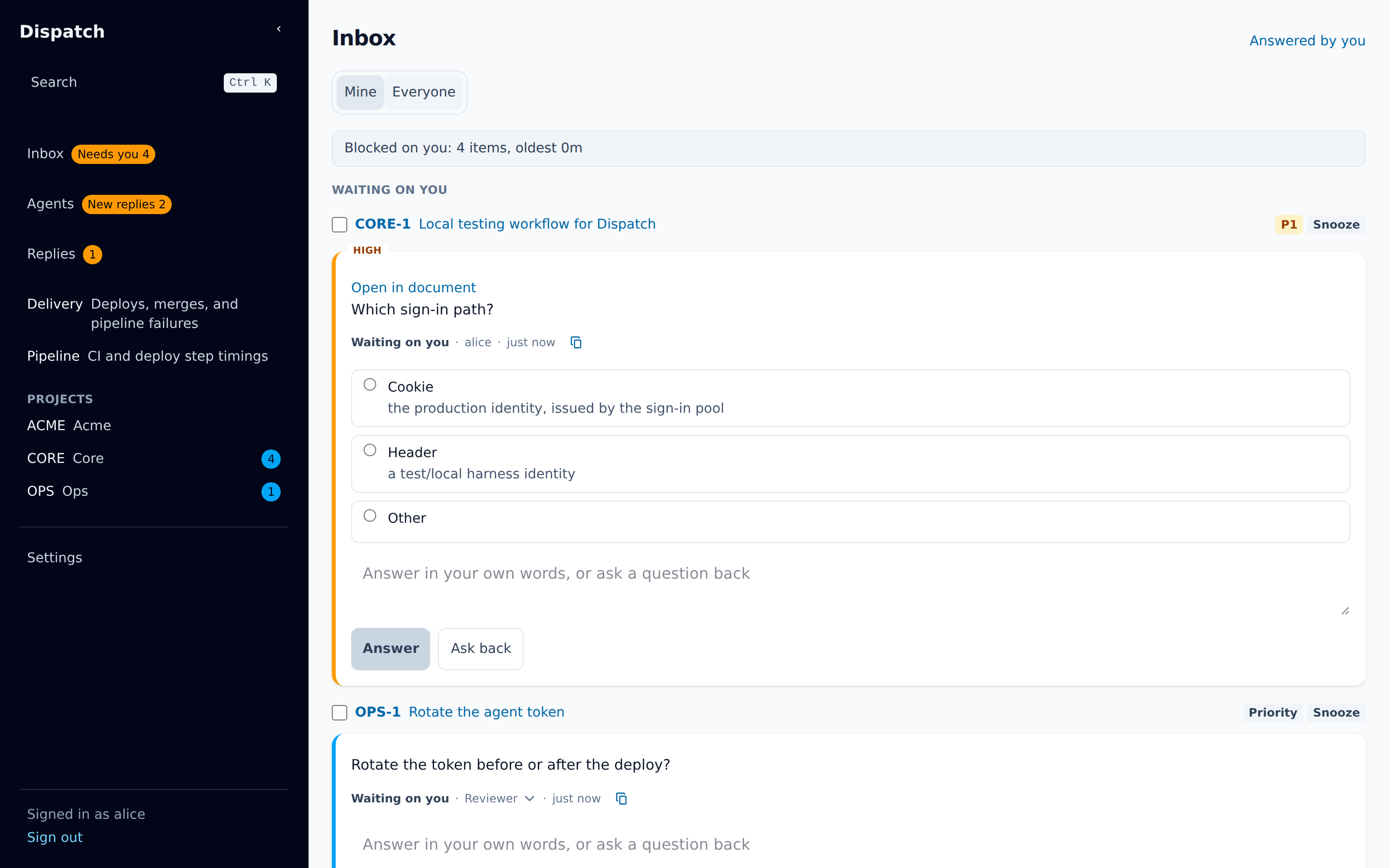
Section titled “How the Inbox is sorted”Every open ask is either waiting on a person or waiting on an agent. The Inbox splits them that way:
- Waiting on you holds the asks where it is a person’s turn.
- Waiting on agents holds the asks where an agent owes the next reply. Your own Ask back puts an ask here, and so does an agent’s progress note.
The split follows whose turn it is, not who wrote last. When an agent has written last but the turn
is still yours, the row shows a chip such as Planner replied. Each card also says
Waiting on you or Waiting on <agent> on its status line.
Within each section, higher priority comes first and unset priority last. The banner at the top,
for example Blocked on you: 2 items, oldest 6h, counts the asks waiting on you in the view you are
looking at, and every credential request waiting on you.
A credential request is an agent asking you to let it use a secret, or a machine asking to start
agent sessions as you. Pending ones are listed under Credential requests, above the sections,
and each links to the page where you approve or deny it. They count toward Needs you and the
banner like an ask that waits on you. The Inbox says Nothing needs you only when it lists no ask
and no credential request. An open Inbox picks up a new request, or one that is no longer pending,
within moments on its own - no reload needed.
Asks grouped by issue
Section titled “Asks grouped by issue”When an issue or a document has more than one ask in a section, its asks sit together under one
header that names the issue or document and how many asks it has, for example
CORE-12 Release train · 3 asks. The group sits where that issue’s first ask in the section would,
so the order between issues is unchanged. An issue with one ask in a section has no header.
When the same issue also has asks in another section, the header ends with a link such as
2 more waiting on agents or 1 more later. Choose it to jump to those asks, opening Later
first if it is folded. The headers are labels only: j and k move from ask to ask.
The list does not move under a moving pointer. If the Inbox refreshes while your pointer travels across it, the rows stay put until the pointer rests, leaves the list, or you click.
Mine and Everyone
Section titled “Mine and Everyone”Every issue has an assignee: the person who answers its asks. The Mine · Everyone switch picks whose asks you see.
- Mine shows the asks on issues assigned to you, under the two sections above. Below them, an Unassigned band holds asks on issues nobody is assigned to, and every ask on a project document. An issue row there has an Assign to me button that moves it into your sections.
- Everyone shows every open ask.
Your first visit opens on Mine. Dispatch remembers your choice for your login. An Inbox link
ending in ?view=everyone or ?view=mine opens that view without changing what Dispatch
remembers.
The Agents page links each agent’s asks too. Its Needs you pill opens the Inbox filtered to
that agent’s asks waiting on you, under an Asks from <agent> waiting on you · clear chip. Choose
the chip to remove the filter.
Later and snooze
Section titled “Later and snooze”You can put off an ask instead of answering it now. Every row has a Snooze control with four choices:
| Choice | Comes back |
|---|---|
| Later today | In three hours, but never after the end of your day. |
| Tomorrow | At 09:00 tomorrow, in your own time zone. |
| Next week | At 09:00 next Monday, in your own time zone. |
| Until I clear it | Only when you end the snooze. |
A snoozed ask moves into the folded Later band. Open the band to see when each ask comes back and to end a snooze early. A snooze outranks whose turn it is: an agent replying to a snoozed ask does not bring it back, and it does not count toward Needs you or the banner.
To snooze several asks at once, tick each row’s checkbox, or press x on a focused row. A bar
appears above the list reading 3 selected, with the same four choices and Clear. If the
server refuses some of them, the bar says how many and why, and those rows stay selected. Press
Escape with no row focused to clear the selection.
Answering an ask
Section titled “Answering an ask”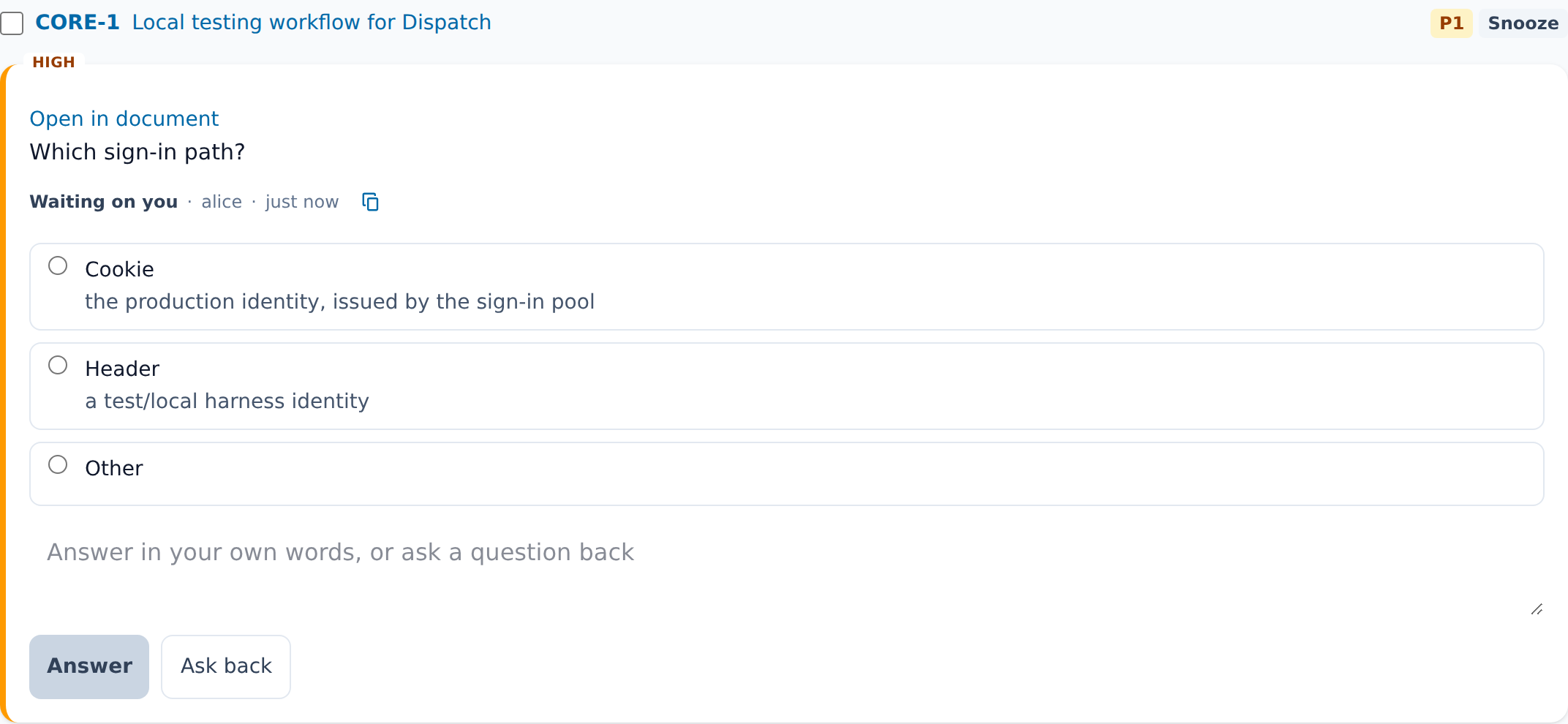
- Read the question. The line under it names who asked, when, and the ask’s
dispatch://reference, which you can copy. - Pick an option. When the ask allows more than one, the options are checkboxes. To answer in your own words, pick Other and type your answer; Other needs text.
- Add a note if you want. You can type context beside any option.
- Choose Answer, or press
Ctrl+Enter(⌘Enteron a Mac).Enteralone starts a new line.
The ask leaves the Inbox once your answer is saved. Its question, options, and your answer stay on the issue’s Conversation tab.
If the agent edits the question while you are answering, the card loads the new wording, keeps your text, and clears your pick. Pick again so your answer matches the question you read. If someone answered or closed the ask before you, the card says so and offers no retry.
Changing your answer
Section titled “Changing your answer”An answer you gave stays yours to change. Its card shows Change answer, to you and nobody else. Choose it and the form opens with your current pick and note filled in; change them and choose Save answer, or Cancel to keep the answer you had. Approvals have no Change answer: record a new review on the document instead.
The agent that asked receives the new answer as it received the first, with the answer it
replaces. Every earlier answer stays on the ask: the card reads Changed <time> and Show 1
earlier answer lists the earlier ones, oldest first. In a document decision, the decision block
is rewritten with the new answer.
If someone changed the answer after you opened the card, Dispatch keeps theirs and shows it, so you can decide again from the current answer.
Answered by you
Section titled “Answered by you”Answered by you, beside the Inbox heading, opens a page of every answer you gave and every reply you wrote on an ask, newest first. Each row shows when, the issue or document, the question, and your answer or reply. Open takes you to the ask: an ask on a document opens that document with the ask selected, and any other opens its turn in the issue’s Conversation. An answer that is no longer the ask’s current one reads Changed since. Your current answers have Change answer, which opens the ask’s card under the row; after you save, the new answer heads the list and the card stays open with both answers.
Ask back
Section titled “Ask back”When you cannot answer yet, type what you need to know and choose Ask back. Your question is posted as a reply on the ask. The ask stays open and moves to Waiting on agents until the agent replies.
If you type a question and choose Answer with no option picked, Dispatch checks first. It offers Ask back instead and Answer with it anyway.
Reply thread
Section titled “Reply thread”Replies appear newest first. The two newest replies stay visible. When there are older replies, choose Show N more replies to reveal them below the newest pair; choose Show fewer replies to collapse the thread again. After an ask is answered, write a follow-up in Reply; in the Conversation tab and in document decisions, choose Write a reply first. A new reply appears at the top of the thread, and a reply you are still typing survives if its card remounts elsewhere, such as switching margin tabs away and back.
Approvals
Section titled “Approvals”An agent can ask you to approve a document at a specific version. The card reads
Approval requested, and its question is Approve <document> (version N)?, followed by the
agent’s summary of what that version proposes. It has two fixed choices and no Other row:
- Approve approves that version.
- Request changes needs a reason, which goes back to the agent.
The card also names the document and the version it asks about as a link (everywhere except the
document’s own margin, where you’re already on it): opening the ask from the Inbox, the drawer, or
its dispatch://.../ask/<id> reference takes you to that document with the approve controls in
view, instead of the issue’s Conversation turn. If the document has moved past the version the
request named, the link still opens the current document, and the card keeps saying which version
the request was for.
When you approved the document before, the card says so under the question:
Approved at version N on <date> by <who>. with a Show diff control. Pressing it shows what
changed between the version you approved and the one you are asked to approve, with every
decision block left out of both, since the answers in those blocks are your own. A first request,
on a document nobody has approved, shows neither.
Answering this card is the same review as the Approve and Request changes buttons on the document itself. Documents covers approval states and what a later version does to an approval.
How an ask reaches its agents
Section titled “How an ask reaches its agents”Under the answer form, a folded Reaches N line lists every agent session that receives this ask’s answer and replies. Open it to see two groups:
- Followers. The session that opened the ask, every session that replied to it, and any session someone added. Each follower receives the answer, edits, resolution, and every reply directly. Unfollow removes one, after you confirm.
- Via issue subscription (or via document subscription). Sessions subscribed to everything on the issue or document. Unsubscribe stops delivery to one, after you confirm. A session subscribed through a wider topic shows that topic and has no control.
Each row shows whether the session is live. The list updates as sessions follow and leave.
Opening the Inbox as a drawer
Section titled “Opening the Inbox as a drawer”You don’t have to leave a page to answer an ask. The i key opens the Inbox as a drawer over
whatever page you’re on, and so does a header button, which differs by screen width:
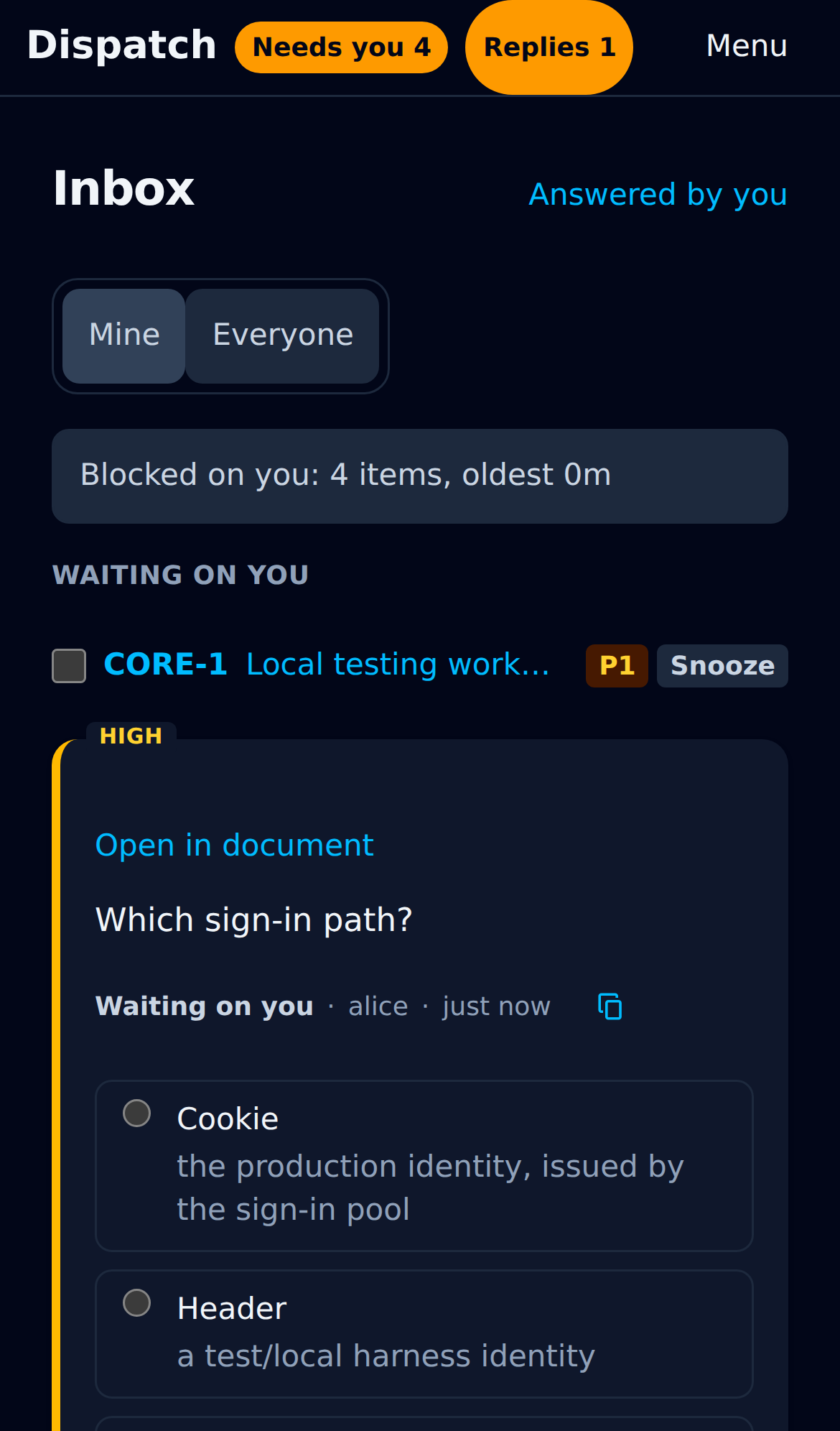
- On a phone or a narrow window, the sidebar collapses into a top header whose Inbox badge (or Needs you N, once something needs you) opens the drawer instead of navigating.
- On a wide screen, the sidebar’s Inbox link still navigates to the Inbox page and keeps its own Needs you N badge; a separate Peek button beside it, with no count of its own, opens the drawer instead.
Either way it’s the same list, cards, and actions as the Inbox page: answer, ask back, snooze, or open an ask without losing your place. The page underneath keeps its state, a half-typed message included, so a reply you were drafting is still there when you close the drawer.
Escape closes the drawer before it closes anything else behind it, and returns focus to the
button that opened it. Clicking outside the drawer closes it too. The button isn’t offered on the
Inbox page itself, since the page already shows everything the drawer would.
On a phone
Section titled “On a phone”The Inbox works the same on a phone. Each row keeps its shape: the issue on the left, and its priority, Assign to me and Snooze on the right.
The keyboard shortcuts page lists the Inbox’s keys.